Forms
Build the form, or bring the one you have.
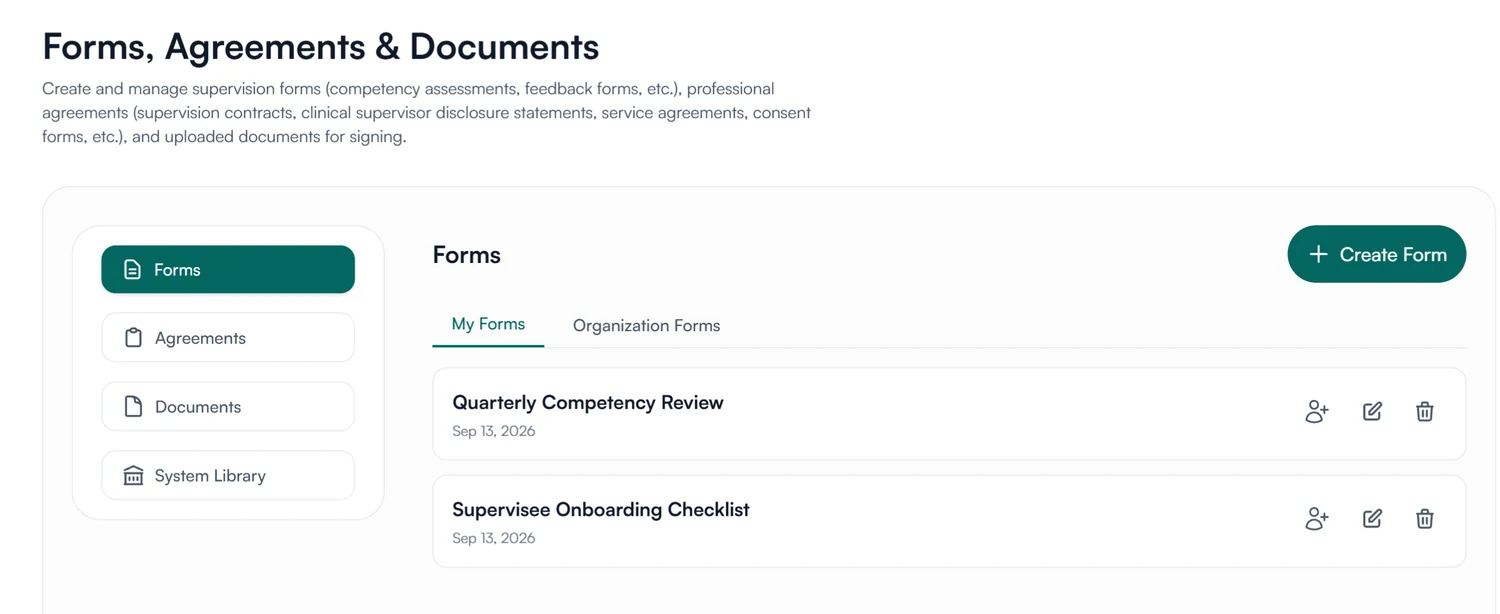
Build evaluations, checklists and self-assessments field by field, import a PDF or Word file, or copy one from the library. Assign the form to a supervisee and their answers are kept in the record.
- 30-day free trial
- Always free for supervisees
Forms you can build
- Competency reviews
- Self-assessments
- Onboarding checklists
- Disclosure statements
- Supervision feedback
- And more
From a blank form to a completed one
Build a form from scratch or start from the PDF or Word file you already hand out, then send it to whoever needs it.
01 Build
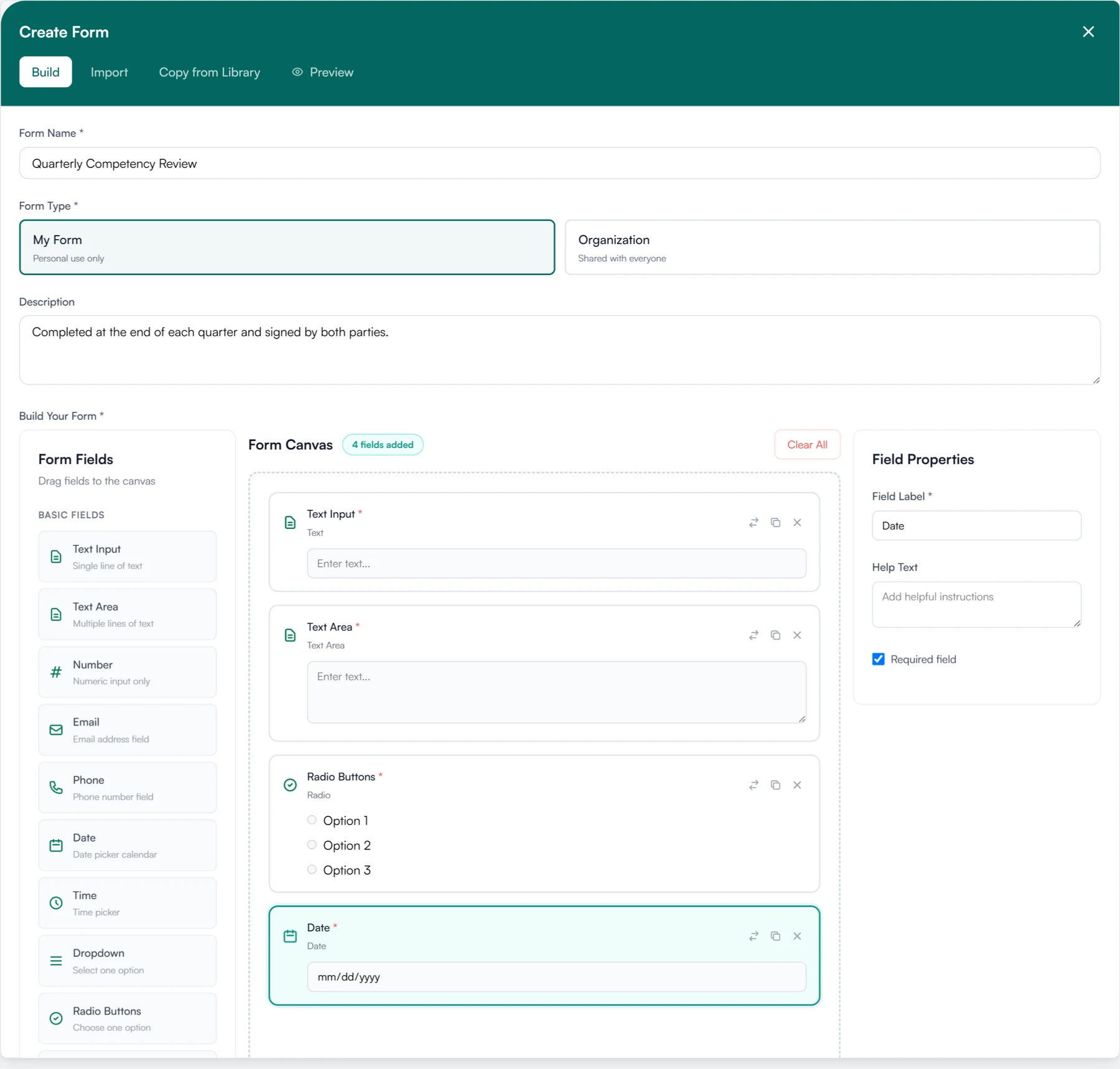
Drag the fields onto the canvas.
- Text, numbers, dates, choices, rating scales and more
- Each field has a label, help text and a required flag
- Preview before you save
02 Import
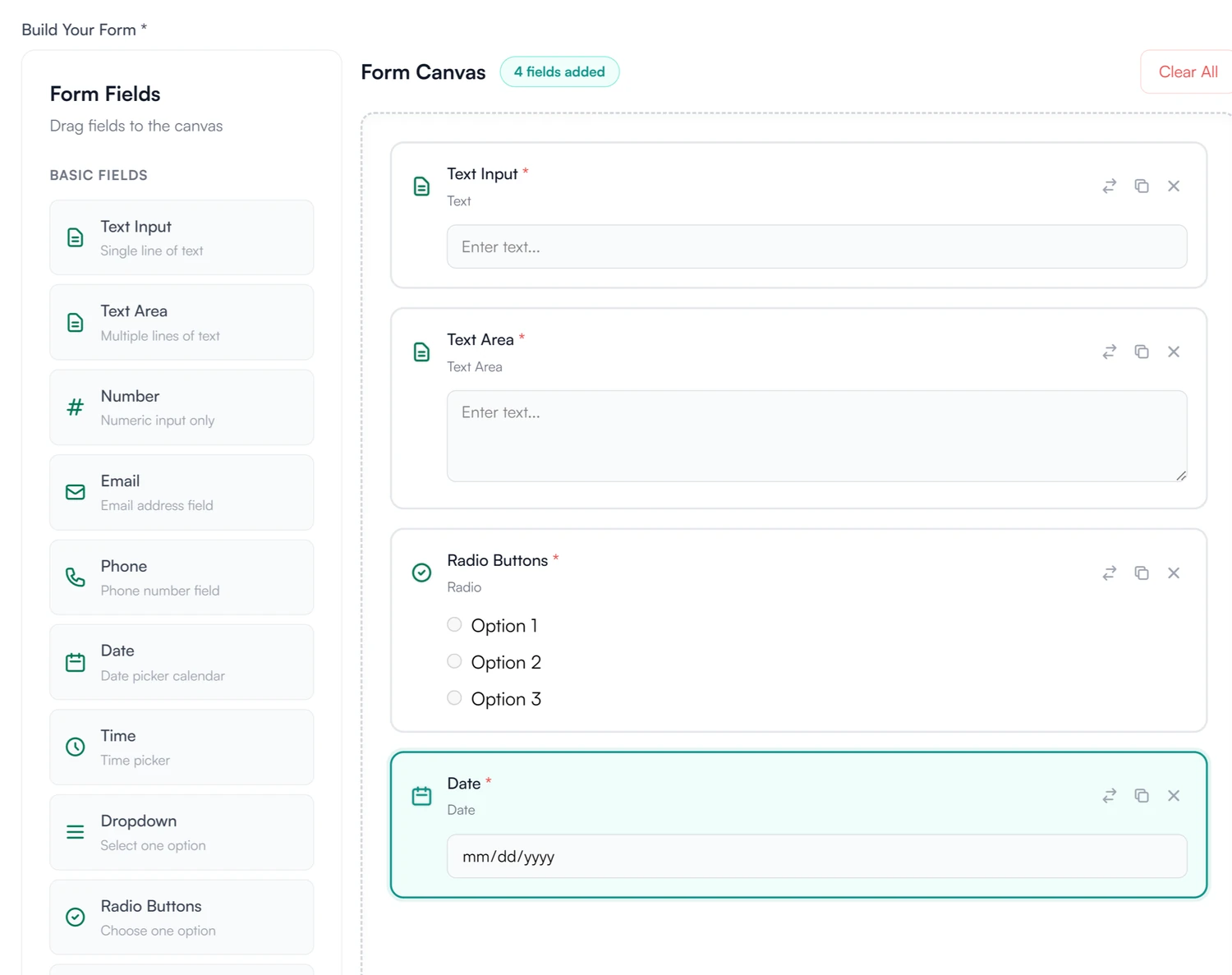
Or upload the document you already use.
- PDF or Word (.docx), up to 10 MB
- Common fields are detected into a draft
- Tidy the draft in the builder
03 Assign
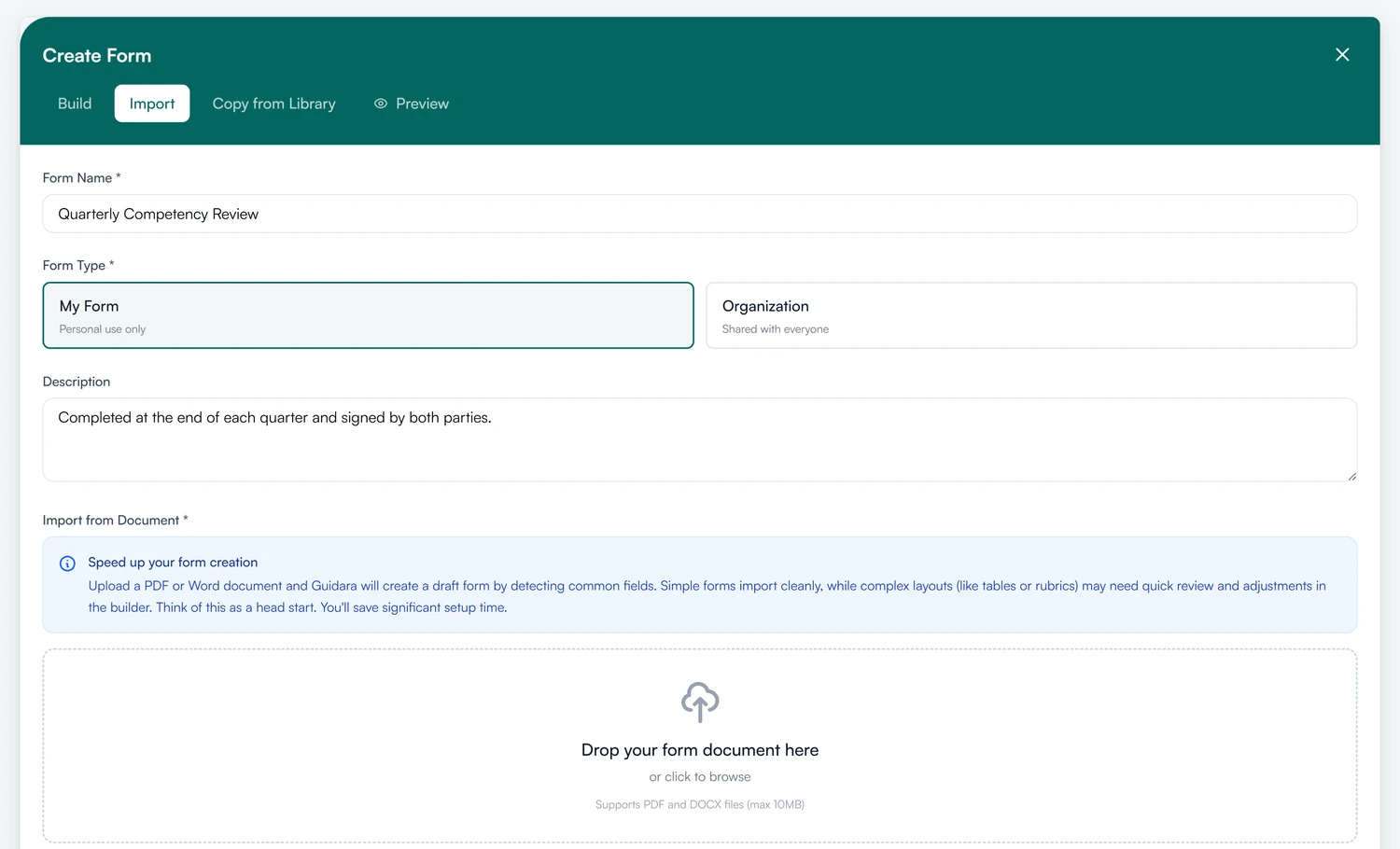
Send it to the supervisees who need it.
- Assign a form to one supervisee or several
- Supervisees fill it in from their documents page
- Completed forms stay in the supervisee's record
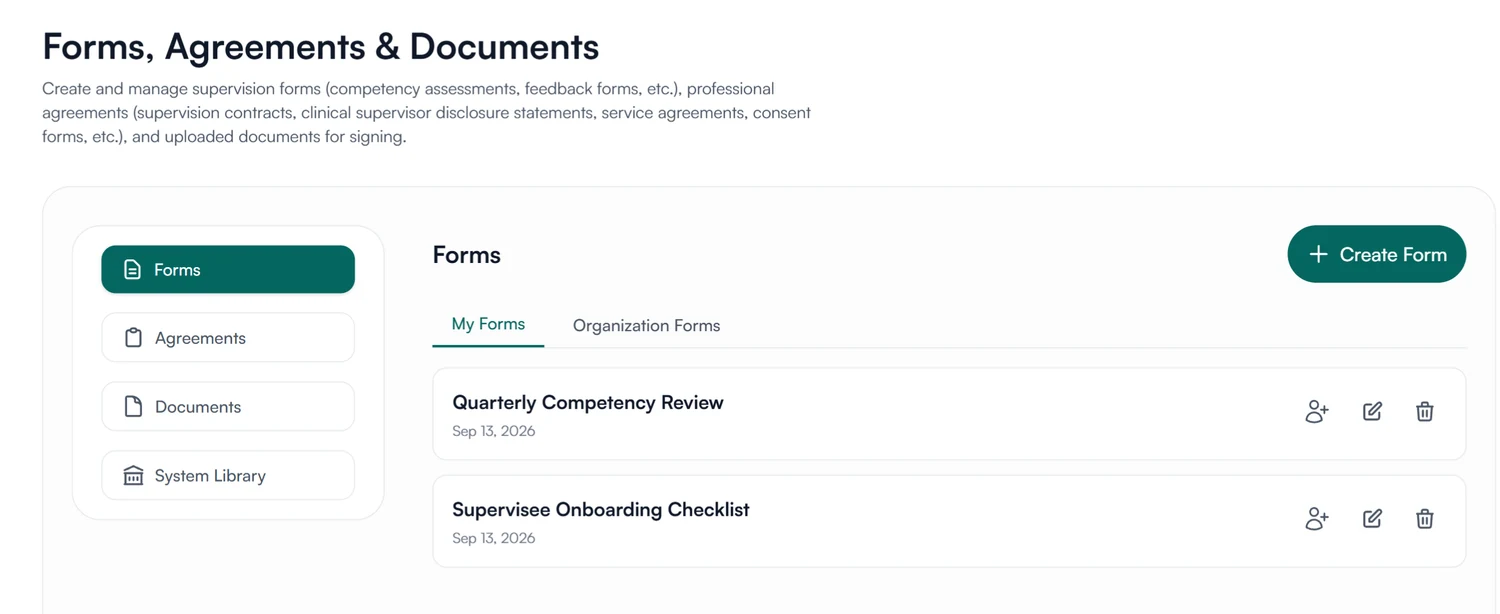
One evaluation form for every supervisee who needs it.
Build or import the form once, then assign it to each supervisee who needs it.
30-day free trial. Always free for supervisees.
Built for the forms supervision actually uses
The field types, the settings on each field, and who can see a form.
Field palette
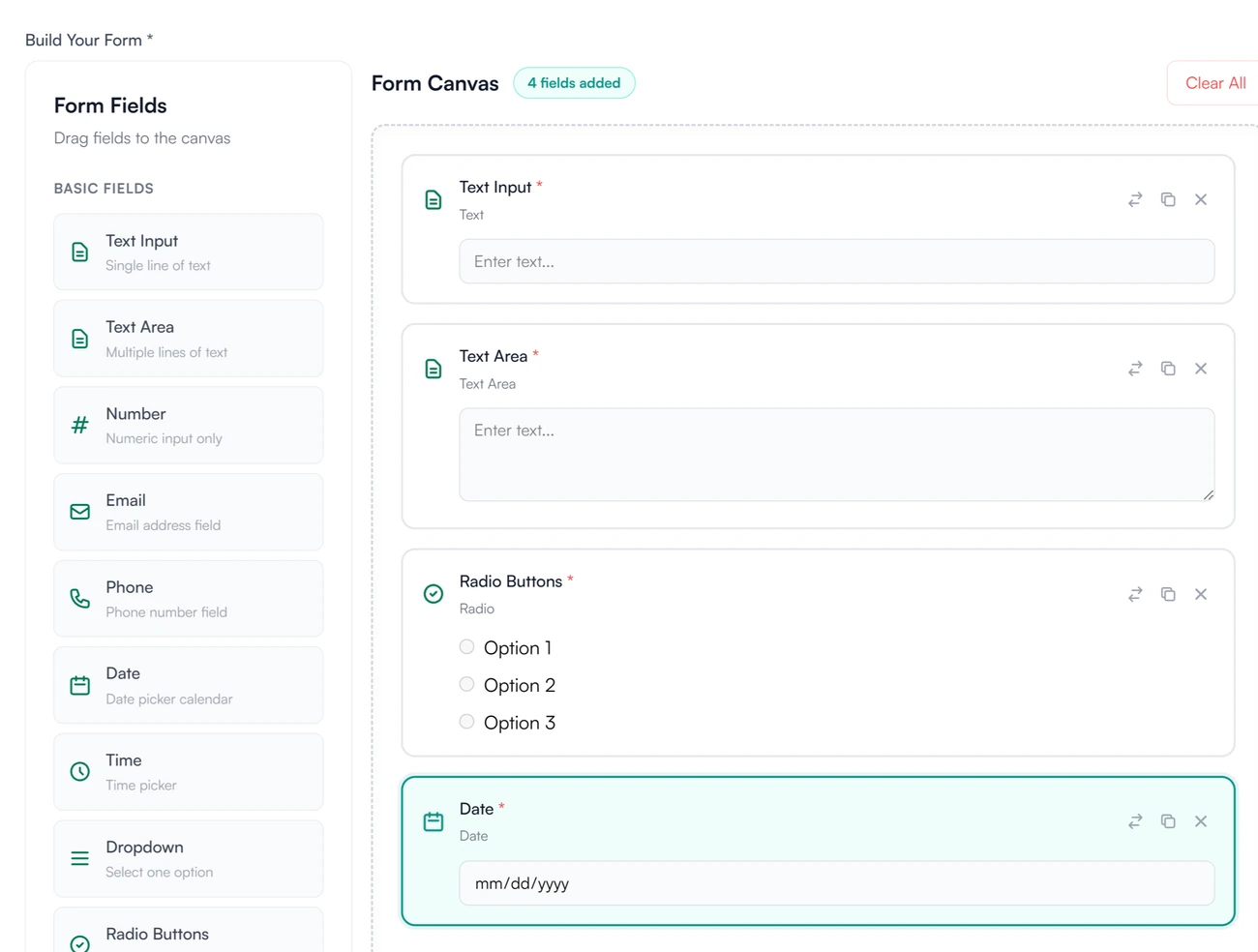
Every field type a supervision form needs.
Single and multi-line text, number, email, phone, date, time, dropdowns, radio buttons, checkboxes and rating scales. Drag one onto the canvas to add it.
Field properties
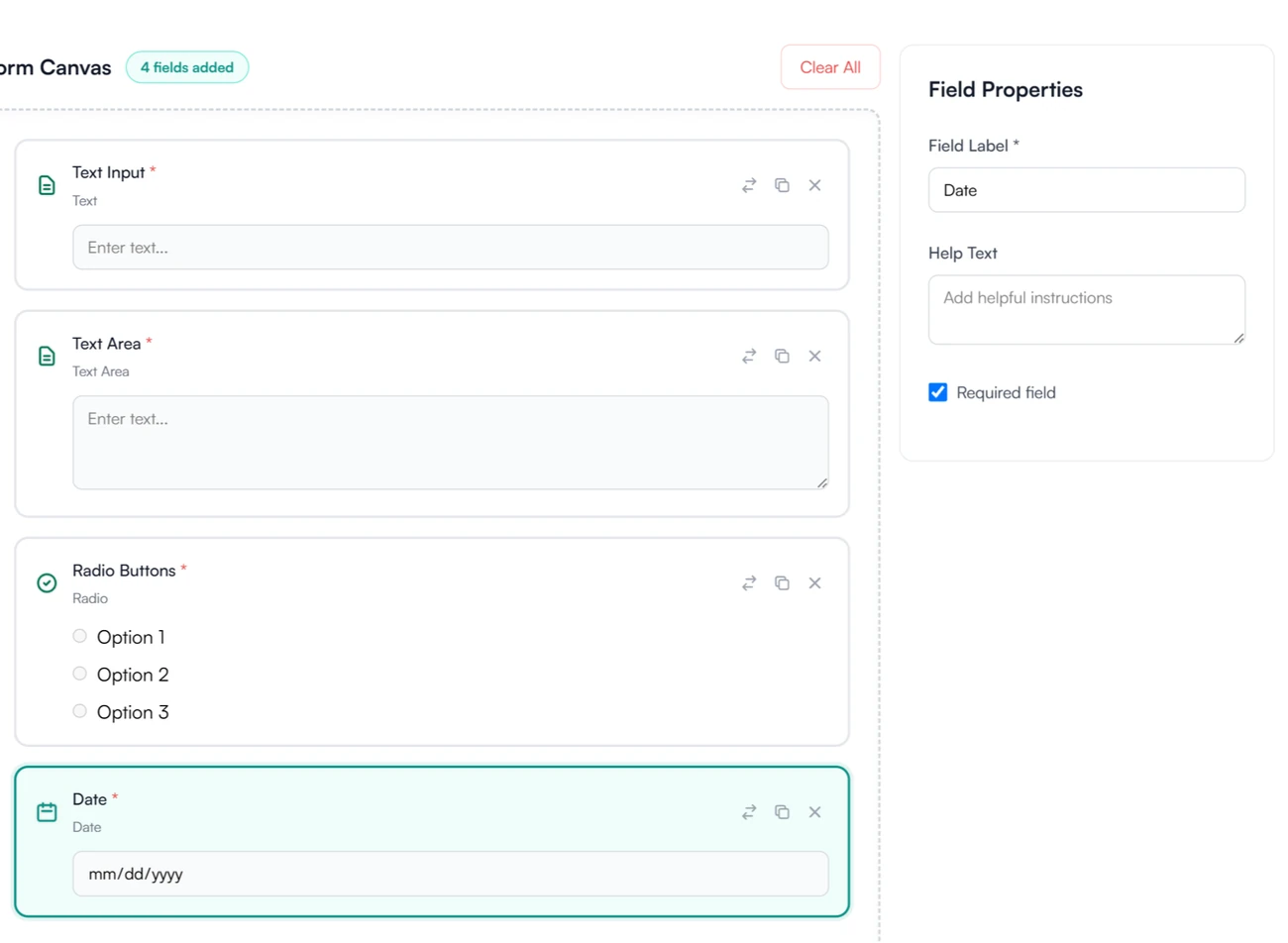
A label, a hint, and whether it is required.
Click a field to set its label, add help text for the supervisee, and choose whether it is required. New fields start out required, and a form cannot be submitted with a required field left empty.
Mine or the organization's
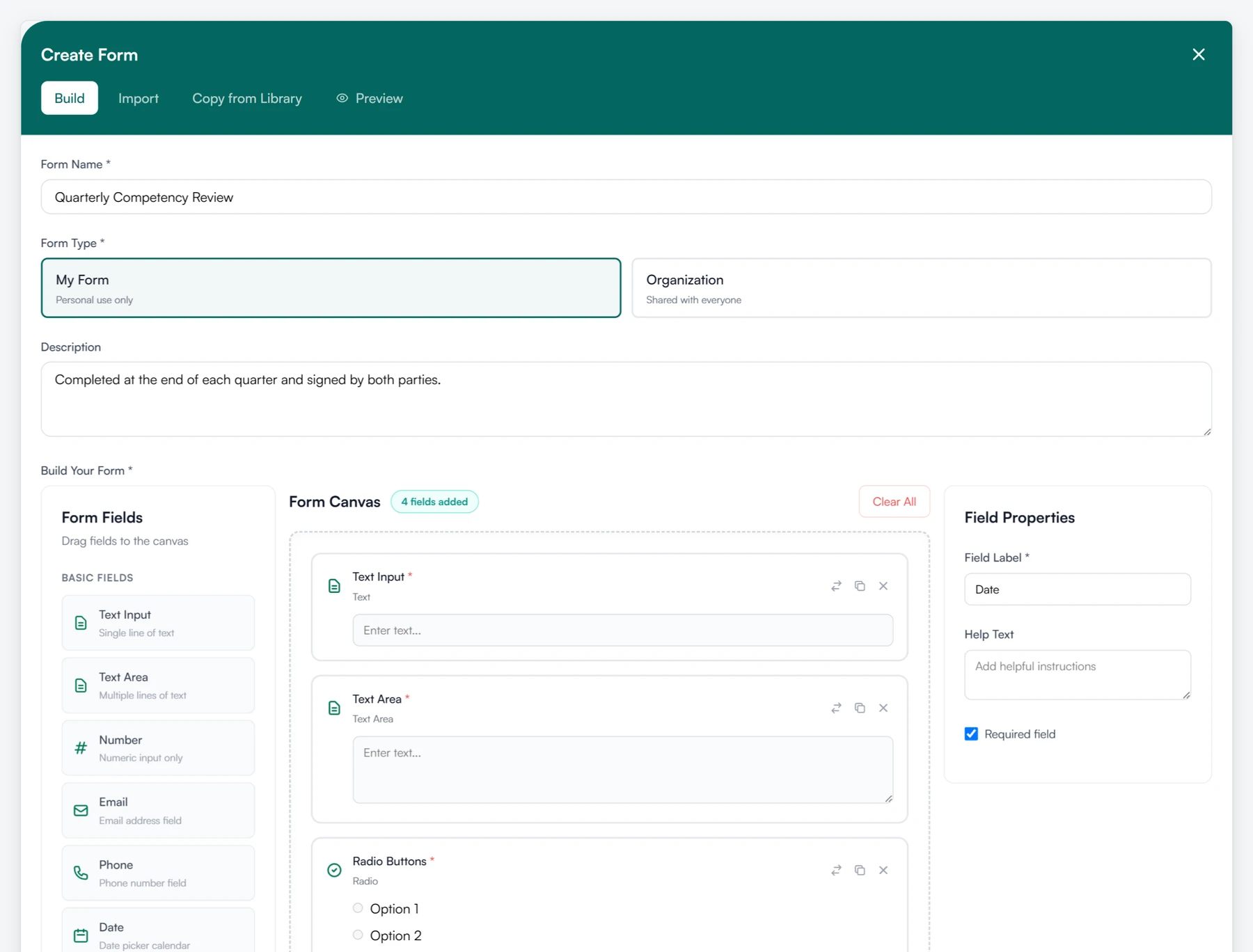
Keep a form to yourself or share it.
A form is either yours alone or shared with everyone in the organization. Owners and admins decide which forms go into the shared set.
Forms for supervisees and supervisors
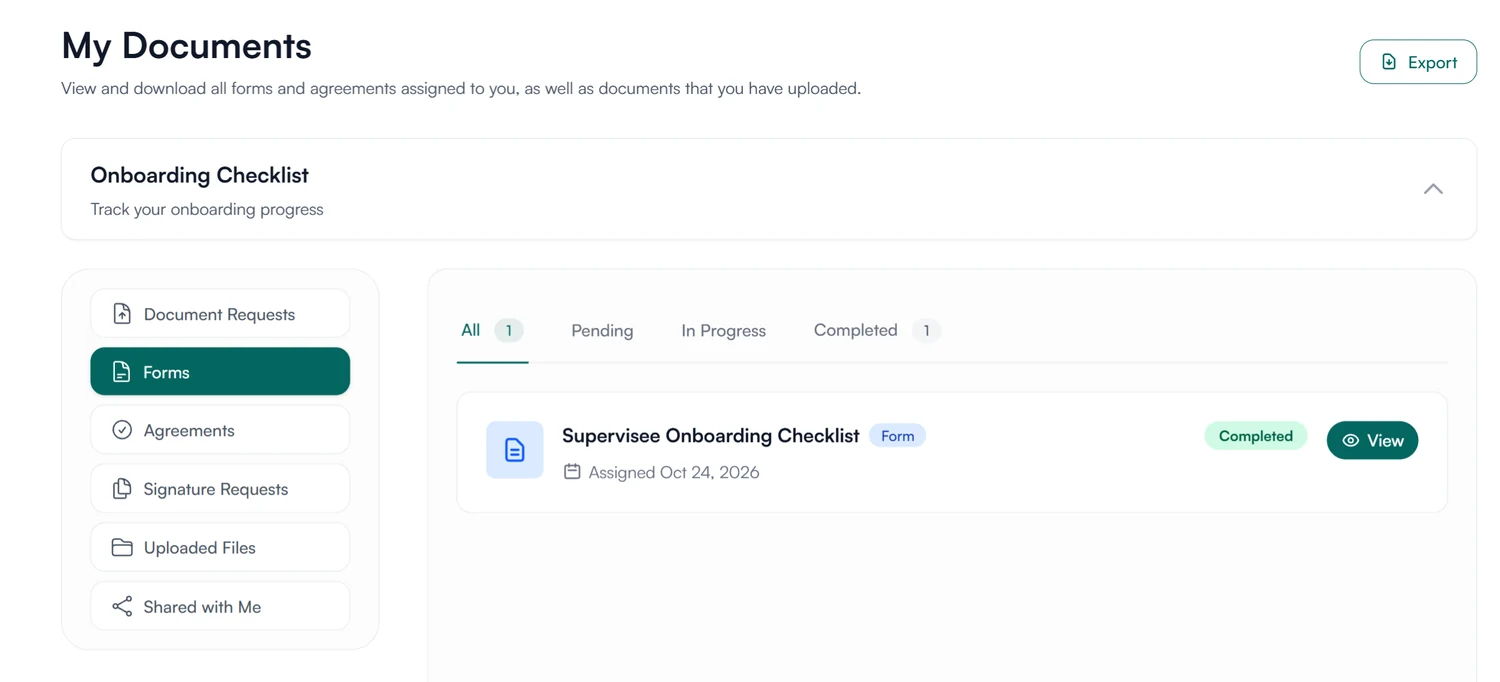
Fill in the forms assigned to you.
Forms assigned to you appear on your documents page and on your dashboard. Fill one in, submit it, and it stays in your record.
- Assigned forms listed with what is still pending
- Completed forms kept in your record
How completed forms are stored and protected
How Guidara protects your records- Answers in the record
- A completed form stays with the supervisee, with when it was assigned and when it was submitted.
- Verifiable exports
- Forms are part of the supervisee's export, which carries a verification code.
- No client health information
- Forms are about the supervisee. Guidara never stores your clients' records.
- Secure by default
- Encrypted in transit and at rest, on SOC 2 certified infrastructure.
Works with the rest of Guidara
All features- AgreementsThe supervision agreement, signed by you and your supervisee. Explore
- Digital signaturesEach signature records who signed, when, and from which IP address. Explore
- OnboardingInvite a supervisee and get them set up. Explore
- ExportsHand over a complete, verifiable record of supervision. Explore
Questions about forms
Completed forms, kept with the supervisee's record.
Import the evaluation you use today and assign it before the next review.
30-day free trial. Always free for supervisees.