Document signing
Send any PDF for signature.
Upload the document your board or practice already uses, place the signature and date fields, and send it to a supervisee. No DocuSign or Dropbox Sign subscription, and no fee per document.
- 30-day free trial
- Always free for supervisees
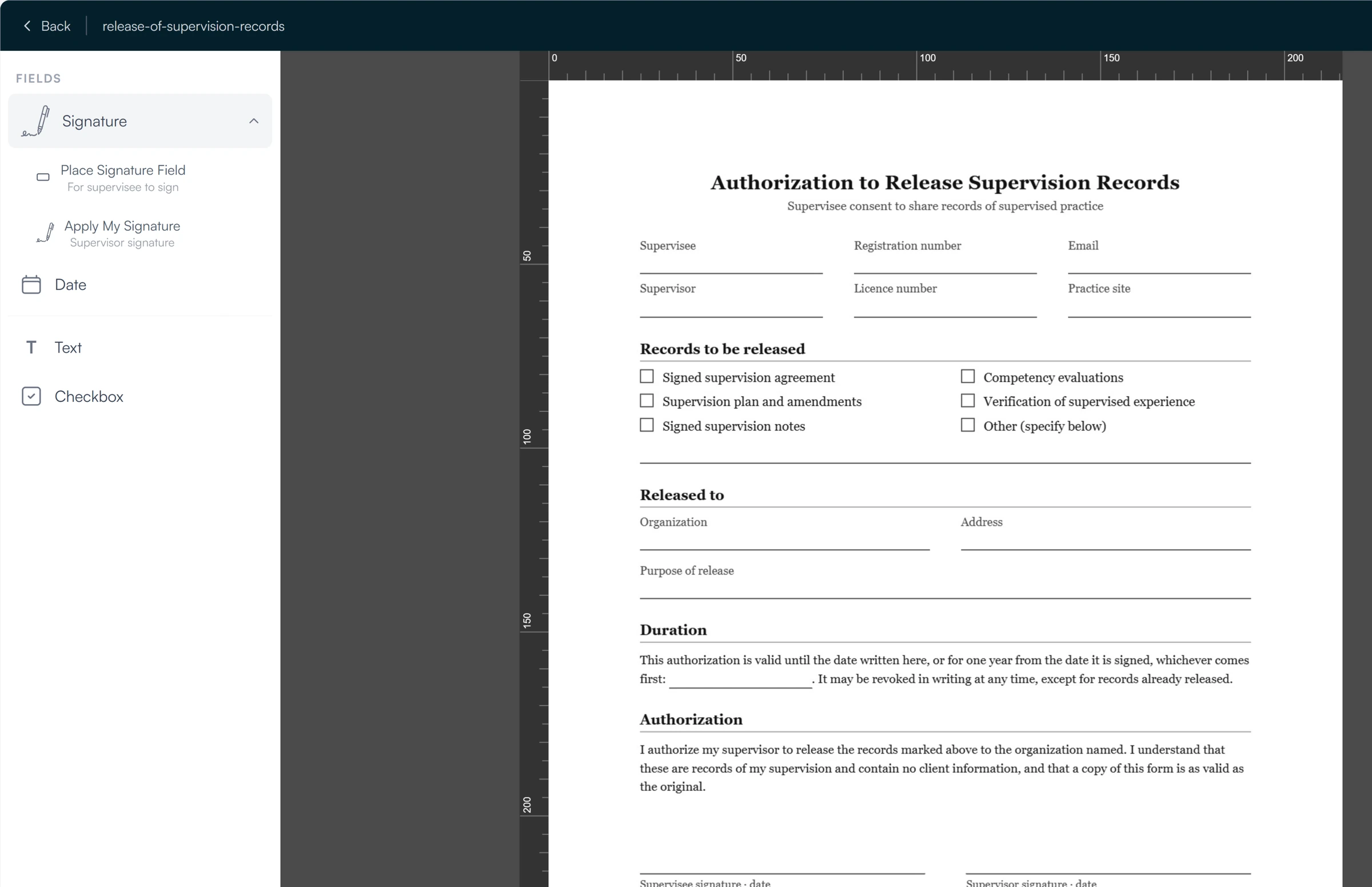
Send for signature
- Records releases
- Evaluations
- Experience verifications
- Attestations
- Any PDF up to 20 MB
From your PDF to a signed copy
Upload the PDF you already use. Guidara signs it as it is, so you do not rebuild it.
01 Upload
Upload the PDF you already use.
- Any PDF, up to 20 MB
- Upload it as a template to send again
02 Place
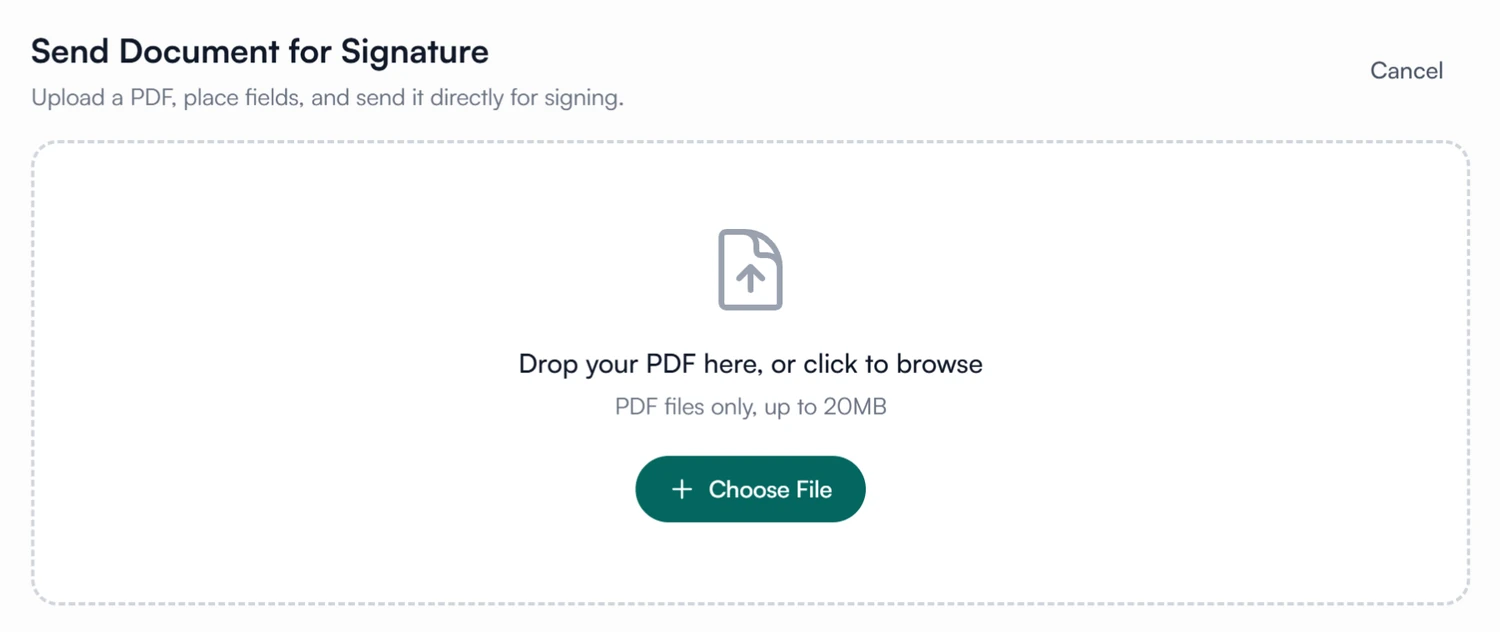
Put the fields where the document needs them.
- Signature, date, text and checkbox fields
- Fields for the supervisee to fill and sign
- Apply your own signature before you send
03 Send
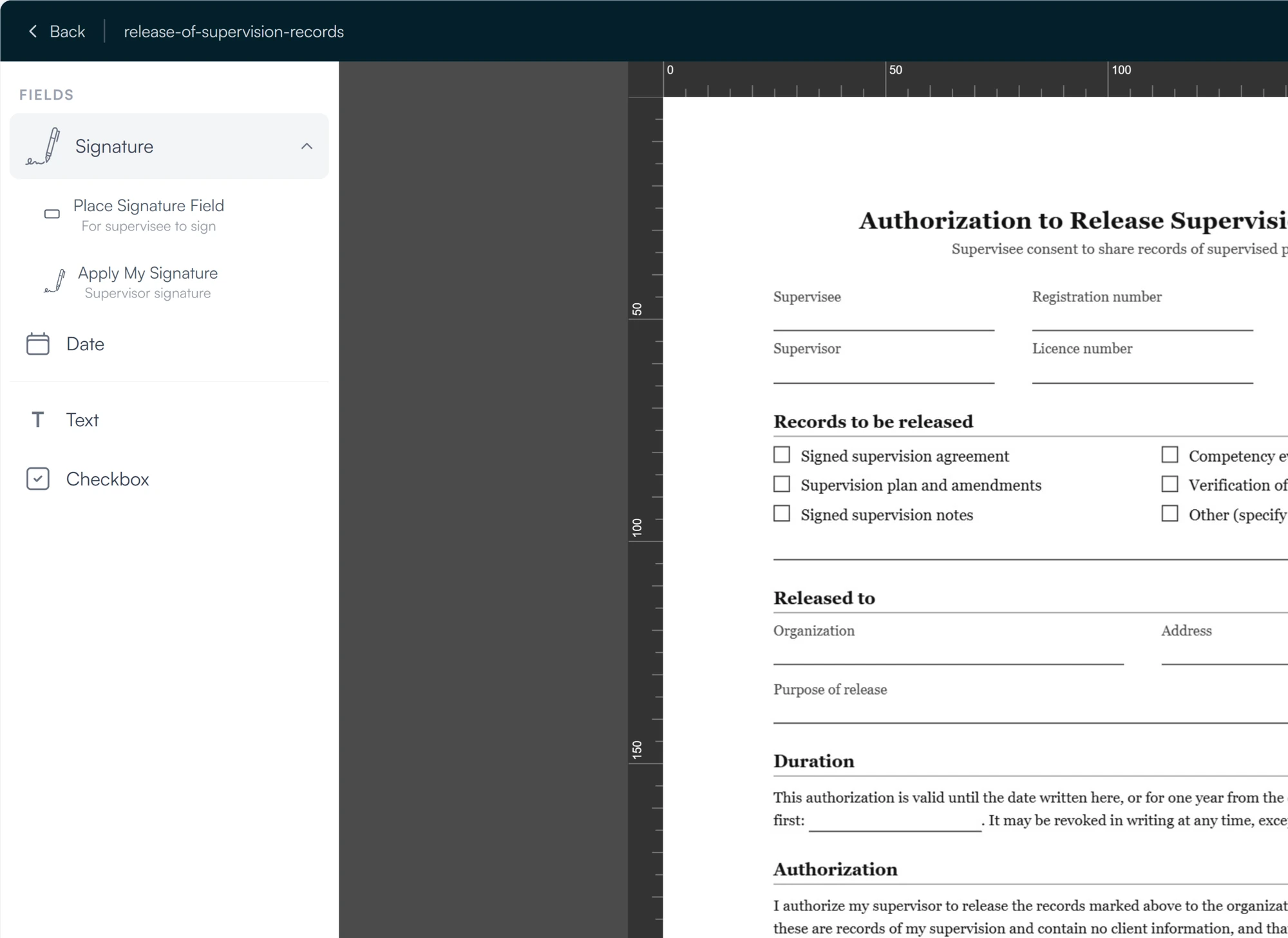
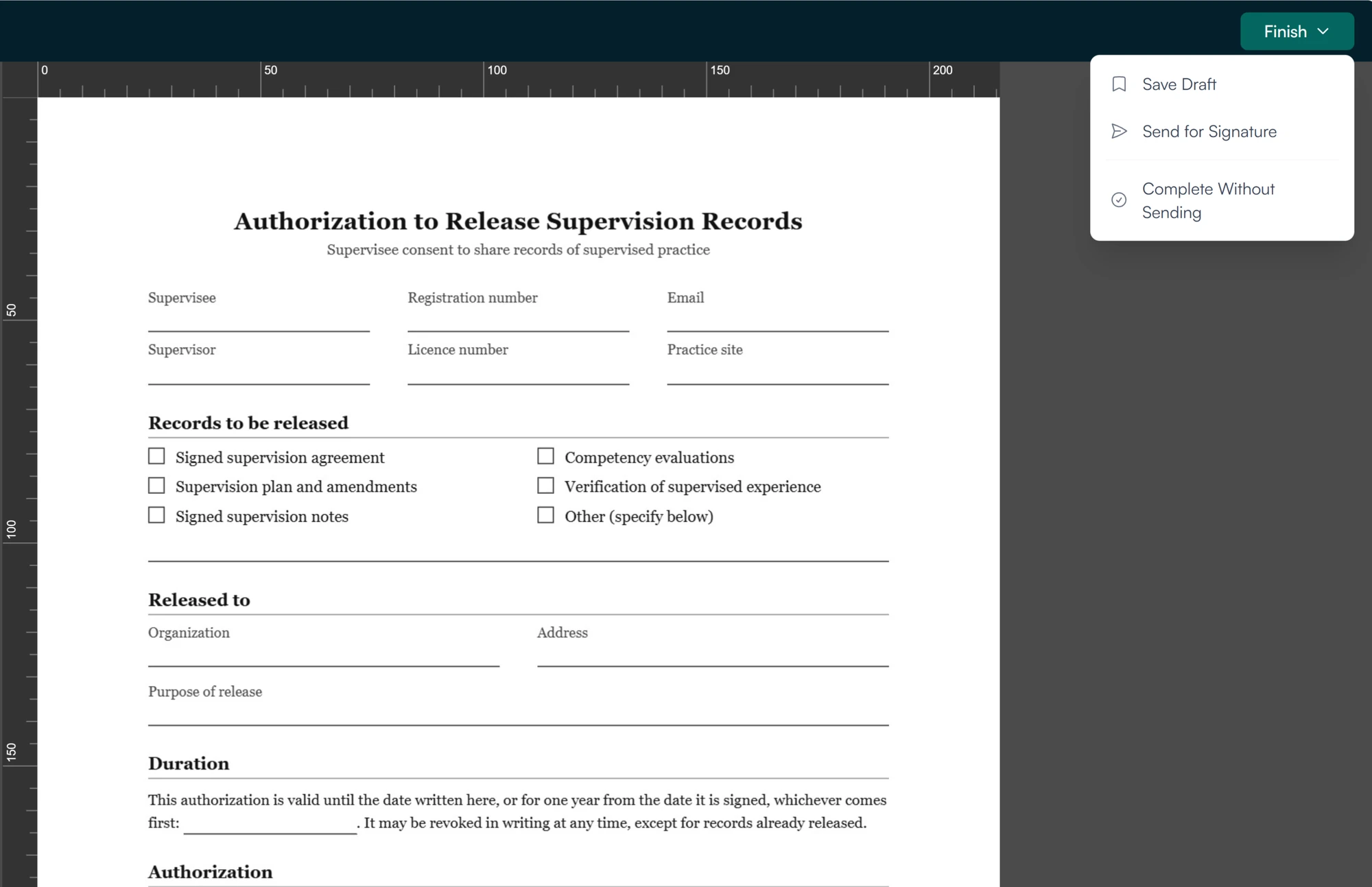
Send it, or sign it off yourself.
- Emailed to the supervisee when it is sent
- Signed with who, when and from which address
- A signed PDF with a verification certificate
Stop paying for a separate signing tool.
No extra subscription and no fee per document. Signing your own PDFs is part of the Guidara plan you already have.
30-day free trial. Always free for supervisees.
A closer look at document signing
The fields, templates, and where each document stands.
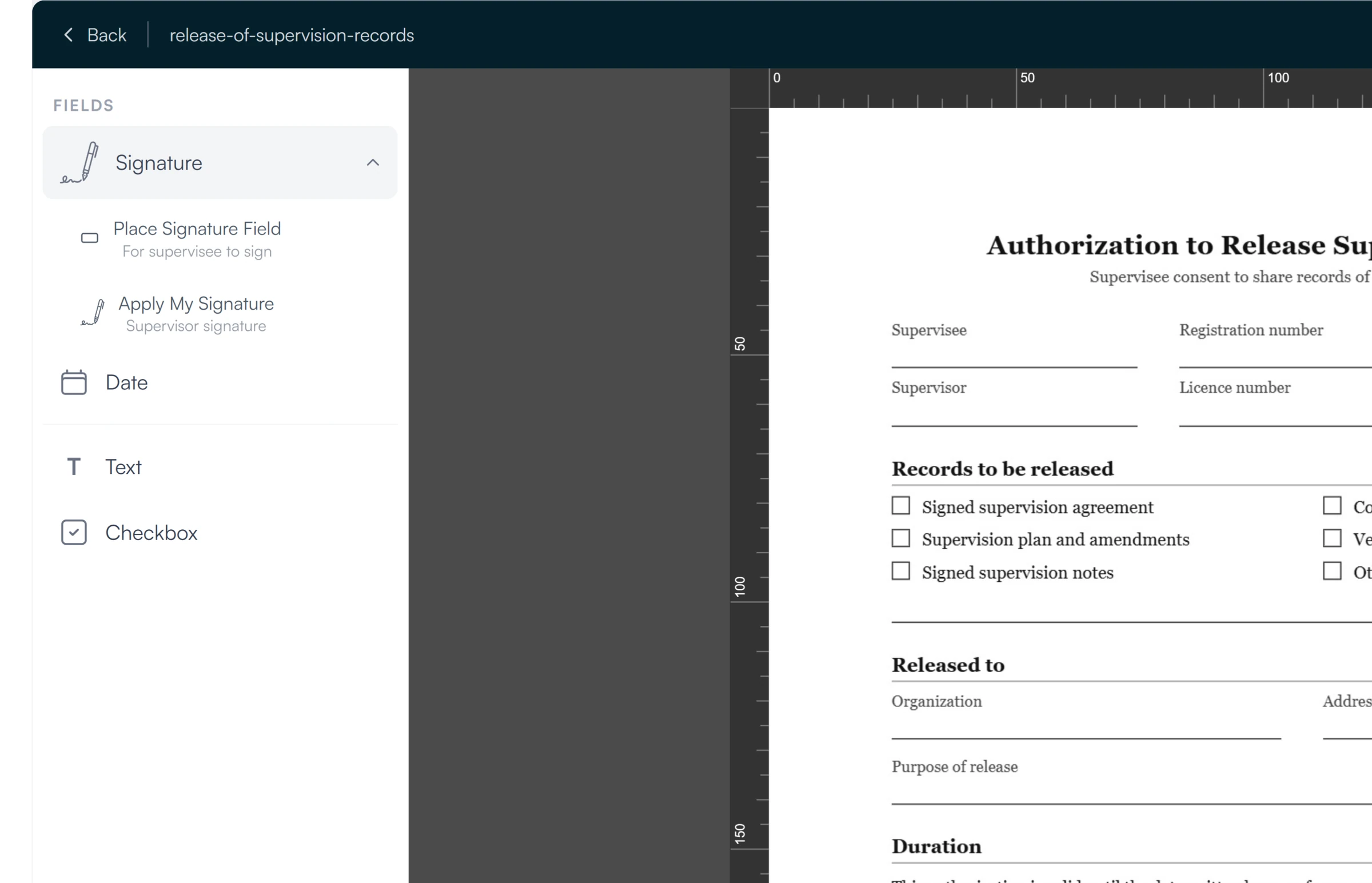
Fields
Four kinds of field, plus your own signature.
A signature box for the supervisee, your own signature applied in place, a date, free text and a checkbox. Place them with the mouse on the page itself.
Templates
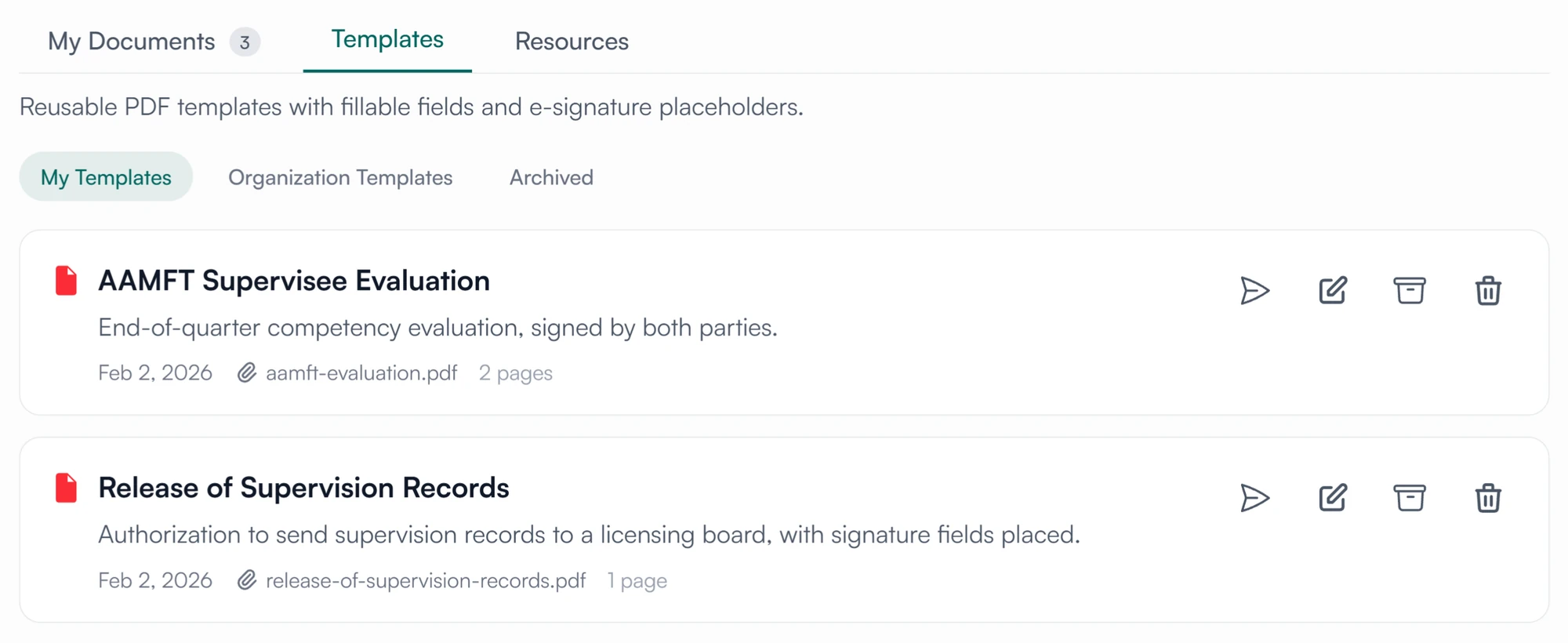
Save a document as a template and reuse it.
Templates keep the PDF with its fields placed. Keep them to yourself or share them with your organization, and send one to a supervisee whenever it is due.
Status
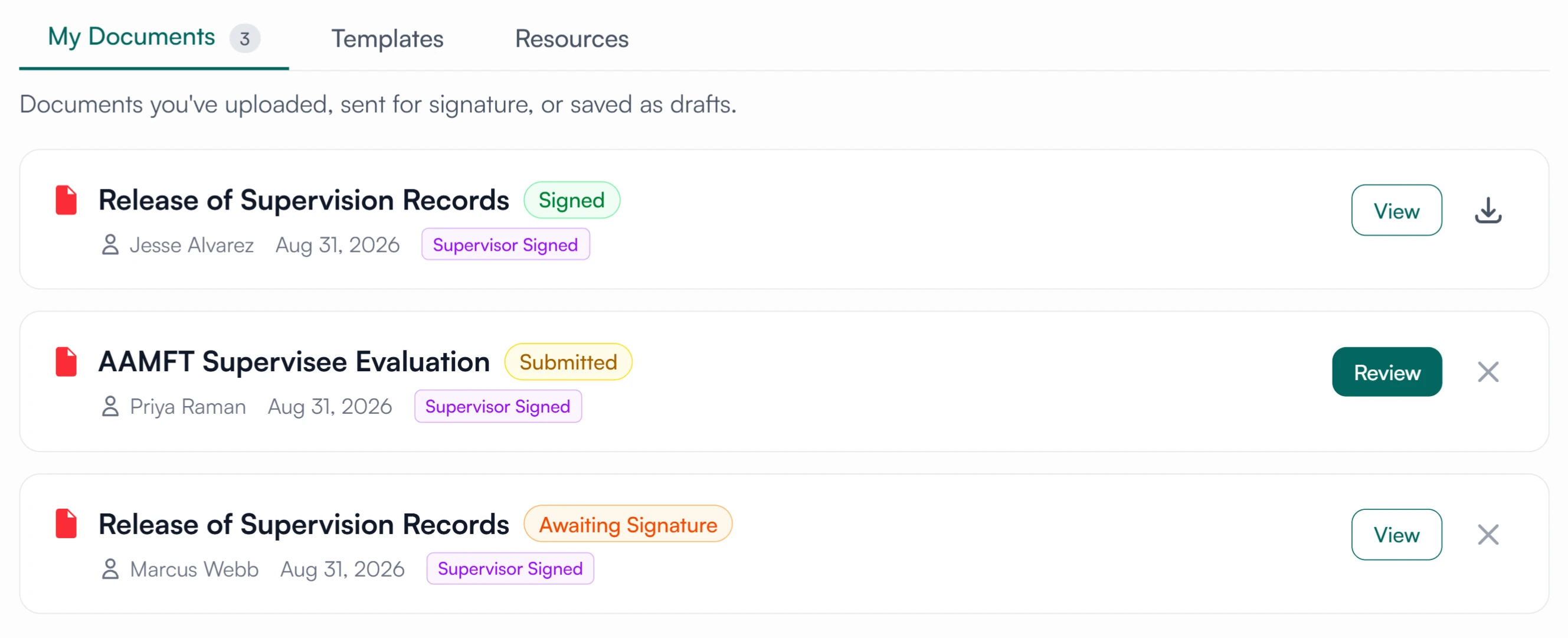
See where every document stands.
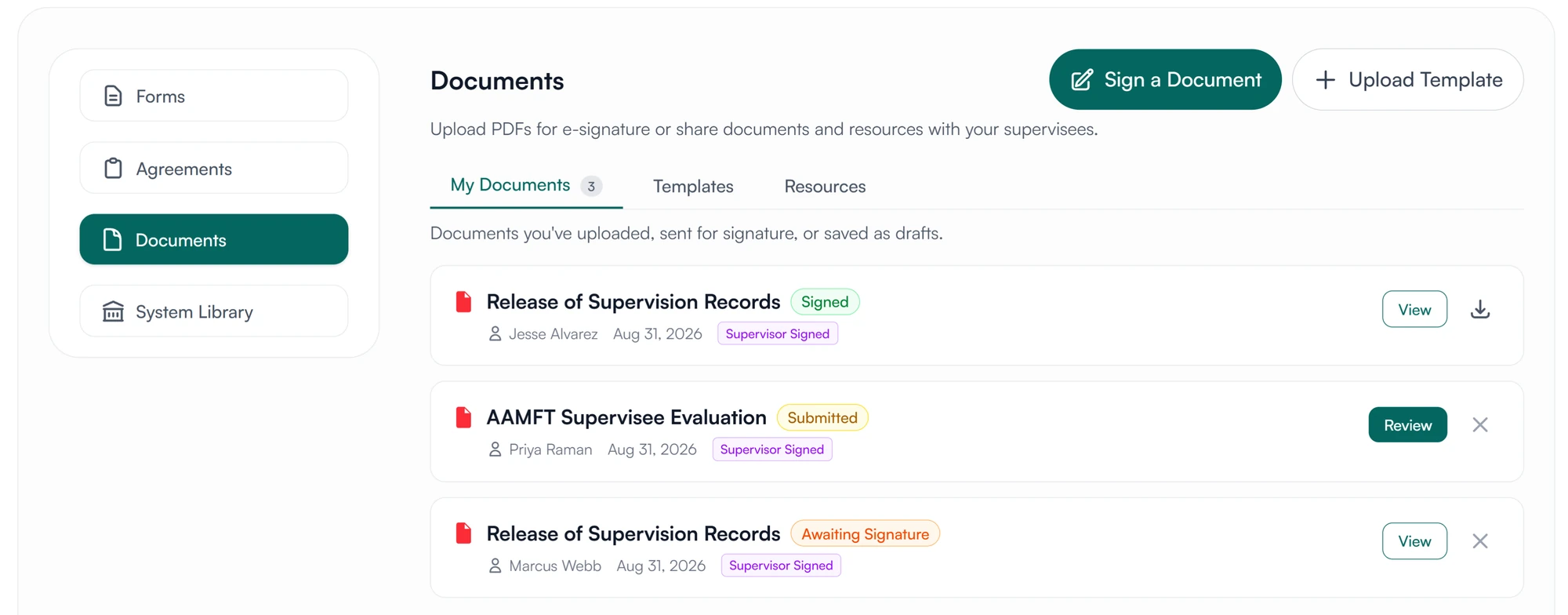
Sent for signature, awaiting signature, submitted or signed, with the supervisee each one went to and whether you have signed your part.
What supervisees and supervisors see
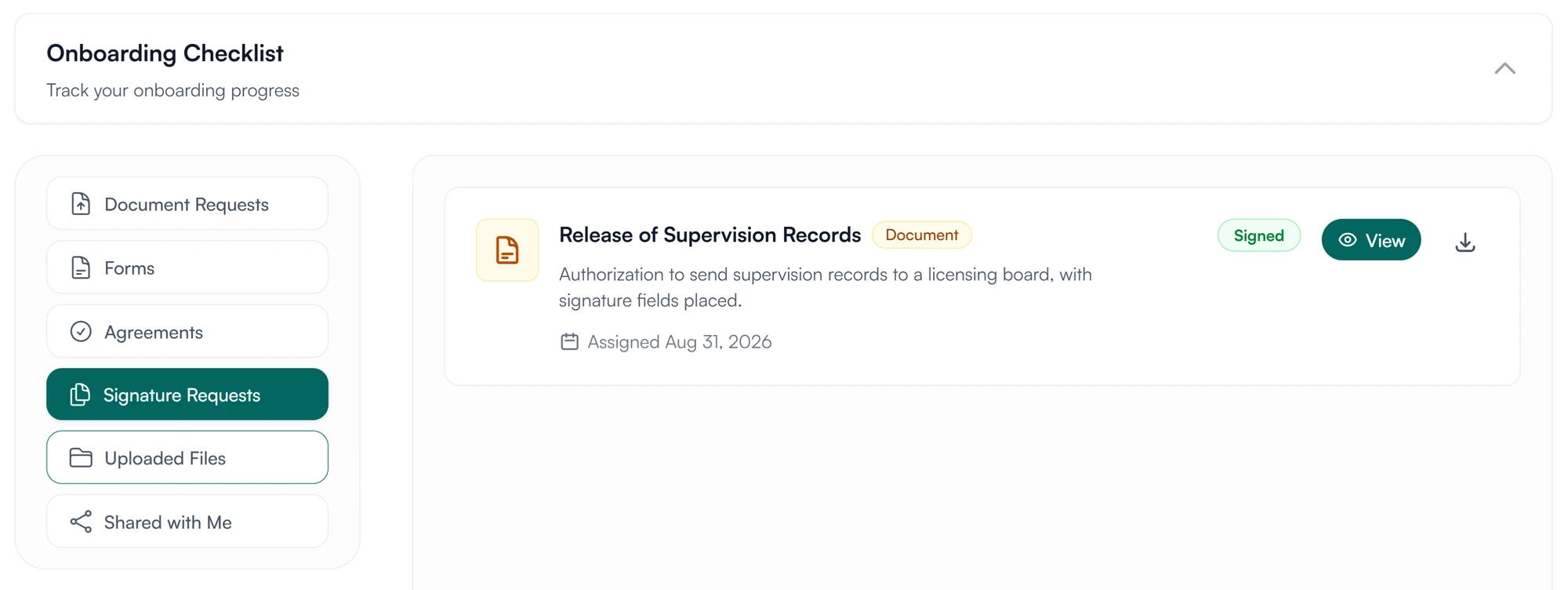
Sign from your own documents page.
You get an email when a document is sent to you, and it waits under Signature Requests. Open it, fill in your fields, sign, and download the signed copy.
- Signature requests in one list
- Download any signed document
How signed documents are stored and protected
How Guidara protects your records- Signer, time and address
- Each signature records who signed, when, and the IP address it was signed from.
- Fingerprinted copy
- The signed PDF's SHA-256 fingerprint is recorded and shown on its verification page, so a copy can be checked against the original.
- A certificate on every copy
- The last page lists every signature and carries a QR code to the verification page.
- Secure by default
- Encrypted in transit and at rest, on SOC 2 certified infrastructure.
Works with the rest of Guidara
All features- Digital signaturesTimesheets, notes, plans and agreements, signed where they are written. Explore
- AgreementsThe supervision agreement, built or uploaded, signed by you and your supervisee. Explore
- FormsBuild a form or import one, assign it, collect the answers. Explore
- OnboardingSend a new supervisee their agreement and the documents they need to start. Explore
Questions about document signing
Send the next PDF from Guidara.
Upload it, place the fields, and a supervisee can sign it the same day.
30-day free trial. Always free for supervisees.